
Install Feeden
Installing Feeden takes about two minutes. When you’re done, Feeden has a copy of your products and variants and is ready to connect to Google Merchant Center.
Before you start
Section titled “Before you start”- You need to be the store owner or a staff member with permission to install apps.
- You’ll need a Google Merchant Center account for the next step. If you don’t have one yet, you can create it later — installing Feeden doesn’t require it.
- Feeden is free during V1.0, with no limit on products or feeds. No credit card is needed.
Install from the Shopify App Store
Section titled “Install from the Shopify App Store”-
Open the Feeden listing on the Shopify App Store and select Install.
If you’re signed in to more than one store, Shopify asks which store to install on. Pick the store whose products you want on Google.
-
Review the permissions and select Install.
Shopify shows exactly what Feeden can read. Feeden only reads your data — it never changes your products, prices or orders.
Permission Why Feeden needs it Products Build your feed: titles, descriptions, images, variants, prices and metafields. Inventory Tell Google whether each variant is in stock, out of stock or on backorder. Markets Offer your enabled markets as feed countries, with the right currency and language. Shipping Copy your Shopify shipping rates to Merchant Center (Shipping). Store languages Send each feed in the language of its market. Orders Send purchase and refund events to Google Analytics 4 — only if you turn on GA4 tracking. -
Feeden opens inside Shopify admin on the Overview page.
In the background it copies your whole catalog in one bulk request. A few hundred products take seconds; tens of thousands can take several minutes. You can keep setting up while it runs.
What you see after installing
Section titled “What you see after installing”The Overview page is Feeden’s dashboard. You can always get back to it from Apps → Feeden → Dashboard in the Shopify admin sidebar.
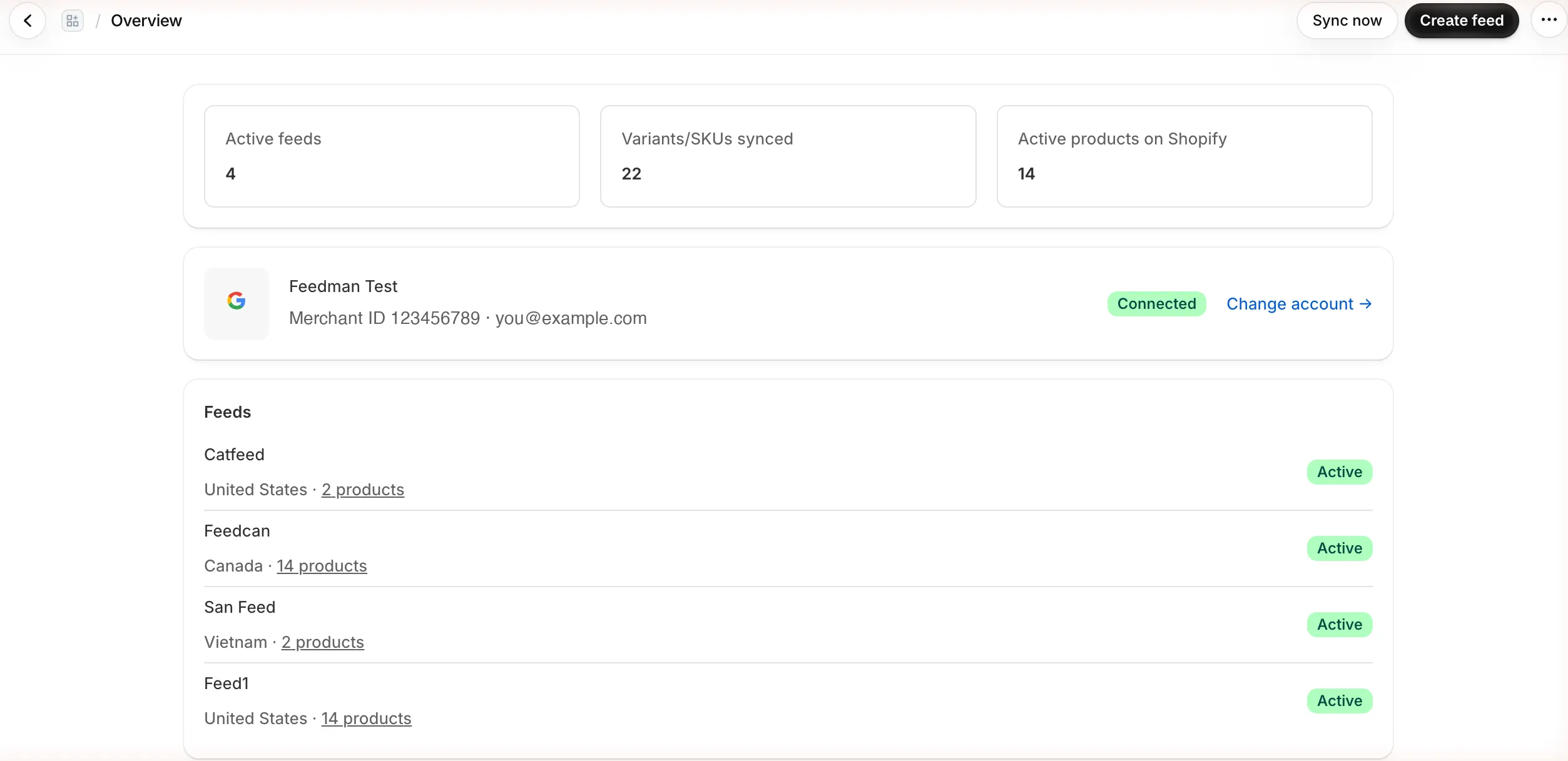
- Active feeds — how many feeds are currently publishing to Google.
- Variants/SKUs synced — how many variants Feeden is sending across all feeds. A product with 3 sizes counts as 3.
- Active products on Shopify — how many active products Feeden copied from your store.
- Google Merchant Center — the connected account, or a Connect button if you haven’t connected yet.
- Feeds — each feed with its country and number of products.
- Sync now re-reads your whole catalog from Shopify. You rarely need it: Feeden already listens for every product, price and inventory change.
Feeden’s own navigation has four pages:
| Page | What it’s for |
|---|---|
| Dashboard | The overview above. |
| Feeds | Create and edit feeds — one per market. |
| Manage Products | Every product’s status on Google, and the issues to fix. |
| Settings | Merchant Center connection, shipping, mapping, tracking and schedule. |