
Connect Google Merchant Center
Feeden publishes your products to one Google Merchant Center account. This page walks through connecting it, choosing the account when you have several, and checking that the account is ready to show products.
Before you start
Section titled “Before you start”- A Merchant Center account. Create one for free at merchants.google.com if you don’t have one.
- Access to that account with the Google login you’ll use. Admin or Standard access is enough.
- Pop-ups allowed for
admin.shopify.com. Google’s sign-in opens in a small pop-up window.
Connect your account
Section titled “Connect your account”-
In Feeden, go to Settings → General.
-
In the Google Merchant Center card, select Connect Google Merchant Center.
A pop-up window opens on Google’s sign-in page.
-
Sign in with the Google account that has access to your Merchant Center, then select Allow on the permission screen.
Feeden asks for one permission: to manage your product listings in Merchant Center. It can’t see your Gmail, Drive or other Google data.
-
The pop-up shows a short message and closes itself:
Message in the pop-up What it means Connected to Google Merchant Center. Done — your Google login has exactly one Merchant Center account, and Feeden selected it. Signed in to Google. Choose the Merchant Center account in Feeden’s Settings. Your login can access several accounts. Go to the next section to pick one. -
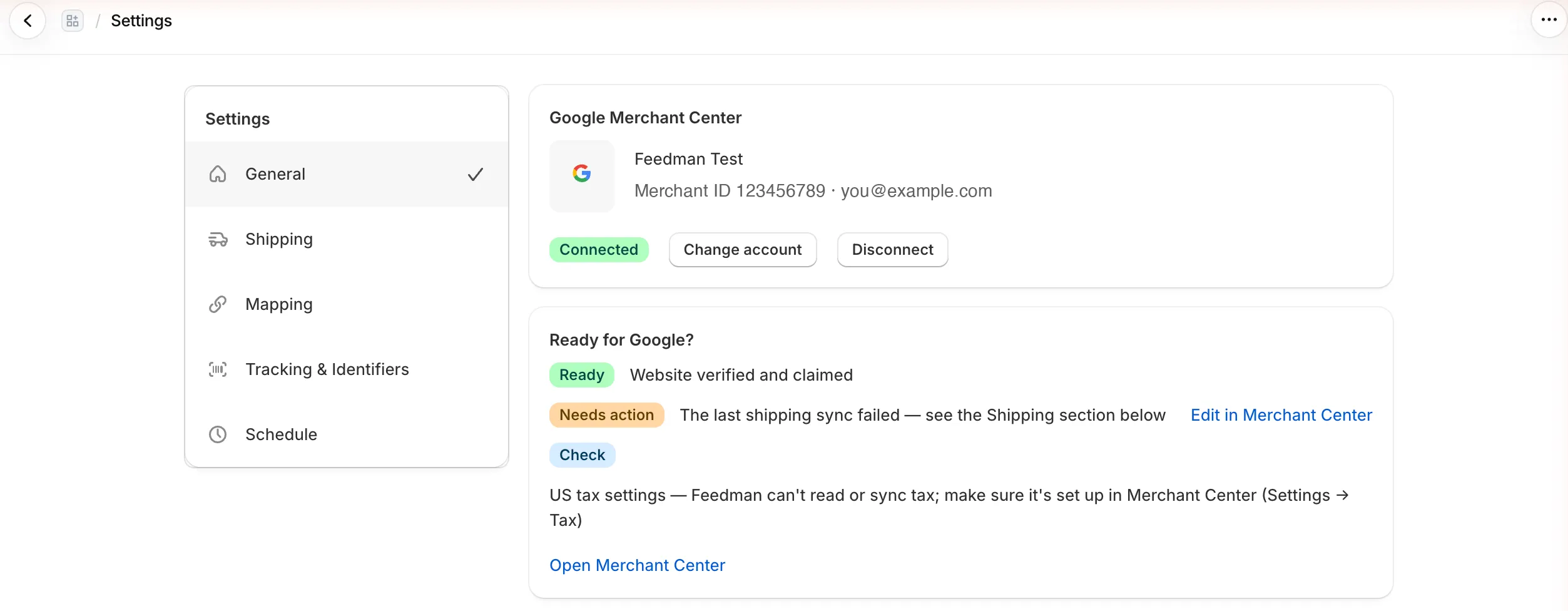
Back in Settings, the card shows the account name, its Merchant ID, the Google login used, and a green Connected badge.
Choose an account (if you have several)
Section titled “Choose an account (if you have several)”If your Google login can reach more than one Merchant Center account, Feeden doesn’t guess. Settings shows a yellow banner, Choose a Merchant Center account, and nothing is published until you choose.
- Open the Merchant Center account list. Each entry shows the account name and ID, for example
Feeden Test · 123456789. - Pick the account whose website is your Shopify store’s domain.
- Select Use this account.
Some entries may be greyed out:
- Multi-client account — choose one of its sub-accounts. Agencies and large sellers group stores under a multi-client account (MCA). Products can’t be published to the MCA itself. Pick the sub-account for this store instead.
- Test account is labelled as such. Products sent to a test account are never shown on Google, so only use one while trying Feeden out.
Check “Ready for Google?”
Section titled “Check “Ready for Google?””Once connected, Settings shows a Ready for Google? checklist of account settings that decide whether your products can appear at all. Each row has a badge:
| Badge | Row | What to do |
|---|---|---|
| Ready | Website verified and claimed | Nothing — Google trusts your domain. |
| Needs action | Website isn’t verified and claimed | In Merchant Center: Settings → Business info → Website, enter your store URL, then Verify and claim. Until then Google won’t show any product. |
| Needs action | No shipping yet / last shipping sync failed | Turn on shipping sync in Feeden — see Set up shipping. |
| Check | US tax settings | Only shown if a feed targets the United States. Feeden can’t read or set tax, so check Settings → Tax in Merchant Center. |
Change or disconnect the account
Section titled “Change or disconnect the account”-
Change account opens a window listing your other Merchant Center accounts. Pick one and select Switch to this account.
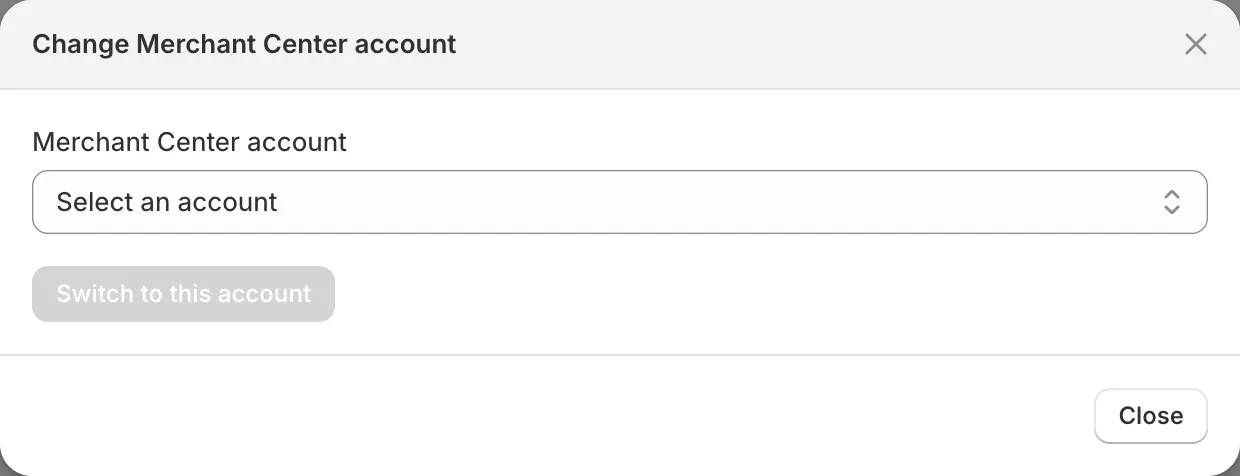
If feeds are already publishing, a warning tells you how many feeds and items Feeden will re-publish to the new account. The items already in the old account stay there — delete them in the old Merchant Center if you don’t want them listed.
-
Disconnect removes Feeden’s access. Real-time sync stops until you connect again. Your feeds and settings are kept.
Common connection errors
Section titled “Common connection errors”The pop-up doesn’t open
Section titled “The pop-up doesn’t open”Your browser blocked it. Look for the blocked-pop-up icon at the right of the address bar, allow pop-ups for admin.shopify.com, then select Connect Google Merchant Center again. Browser extensions that block pop-ups or third-party cookies can cause the same problem — try a private window if it persists.
“Google sign-in was cancelled.”
Section titled ““Google sign-in was cancelled.””You closed the pop-up or selected Cancel on Google’s permission screen. Start again and select Allow. If your Google Workspace admin restricts third-party apps, ask them to allow Feeden.
“That Google account has no Merchant Center access.”
Section titled ““That Google account has no Merchant Center access.””You signed in with a Google login that isn’t a user on any Merchant Center account. Either:
- sign in with the login that owns the Merchant Center account, or
- in Merchant Center, go to Settings → People and access, add your current login as a user, accept the invitation, then connect again.
This also happens when you signed in with a personal Gmail but Merchant Center is owned by your work login. Google remembers the last login you picked — choose Use another account on the sign-in page.
“Couldn’t connect to Google Merchant Center.”
Section titled ““Couldn’t connect to Google Merchant Center.””Google didn’t finish the sign-in, usually because it timed out or the pop-up was left open too long. Close the pop-up and try again. If it keeps failing, contact support.
“Couldn’t load your Merchant Center accounts from Google — try again.”
Section titled ““Couldn’t load your Merchant Center accounts from Google — try again.””This appears in the account list when Google’s API didn’t answer. Close the window, wait a minute and try again.
“Connection lost — real-time sync is paused until you reconnect.”
Section titled ““Connection lost — real-time sync is paused until you reconnect.””The card turns red with a Disconnected badge. It happens when the Google login’s password changed, its access to the Merchant Center account was removed, or you revoked Feeden in your Google account’s security settings. Nothing is published while disconnected.
Select Reconnect and sign in again with a login that still has access. Feeden keeps the account you were using if it’s still reachable, and resumes syncing automatically.
“Website not verified and claimed in Merchant Center”
Section titled ““Website not verified and claimed in Merchant Center””Feeden is connected, but Google won’t show products until the website is claimed. Follow the Needs action row in Ready for Google?.
“Merchant Center website differs from your store domain”
Section titled ““Merchant Center website differs from your store domain””The claimed website (for example oldbrand.com) isn’t your Shopify store’s primary domain. Product links point to your store, so Google may disapprove them for a landing-page mismatch. Claim your store’s primary domain in Merchant Center, or change the primary domain in Shopify (Settings → Domains).